PDF Tasks
Convert Images to PDF Without Losing Page Order
Turn JPG, PNG, or WebP images into one PDF while controlling page order, orientation, margins, readability, and output size.
Short answer
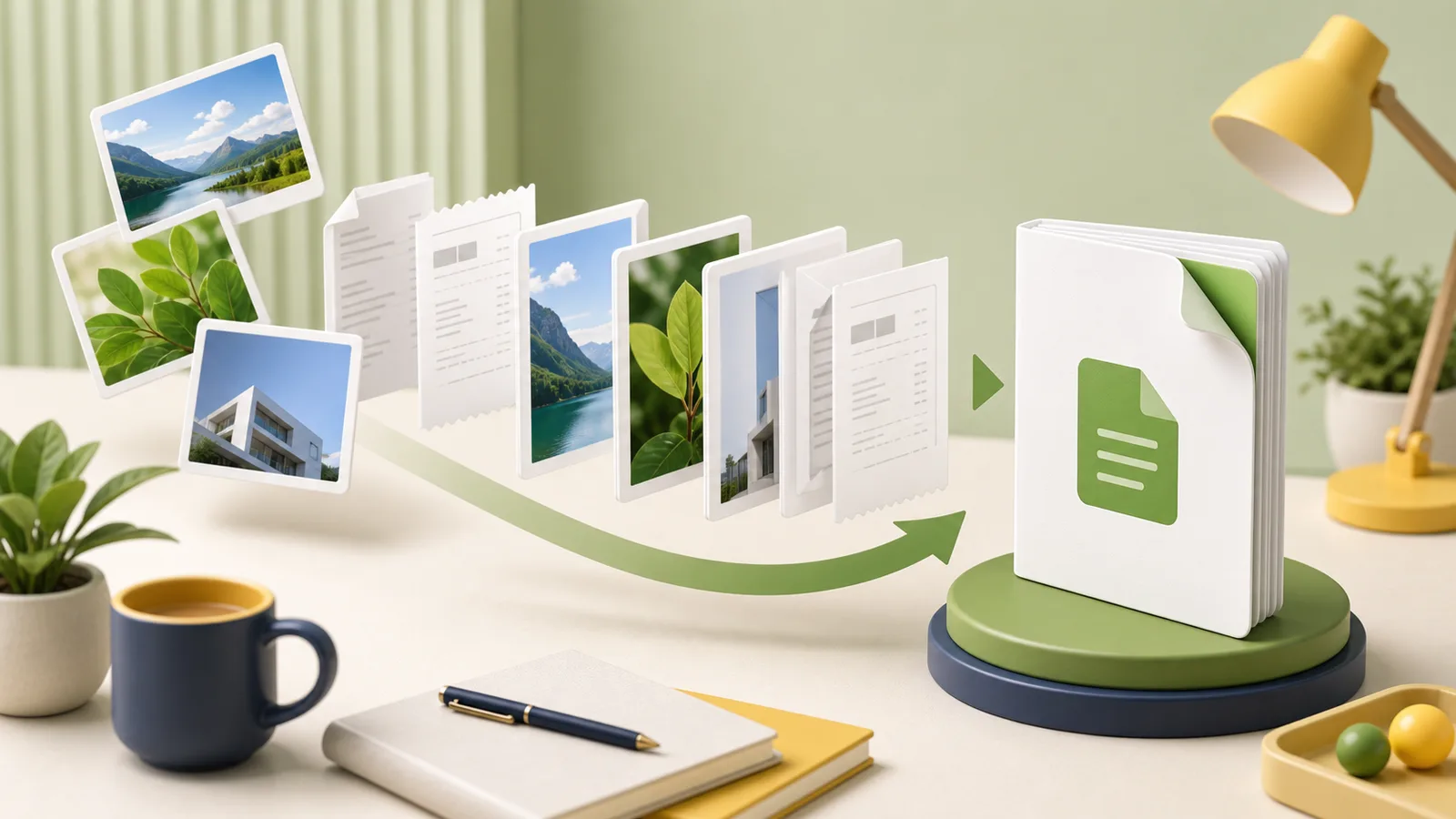
Arrange images in reading order, rotate them correctly, choose a page fit rule, and export one PDF. Review every page afterward because filenames, orientation, and mixed image sizes can produce unexpected results.
Key takeaways
- Rename or reorder images before conversion.
- Use consistent orientation when possible.
- Keep text large enough to read on the final page.
- Compress oversized photos before creating a submission PDF.
Prepare the source images
Remove duplicate photos, rotate sideways scans, and place files in the intended order. Mixed portrait and landscape images may need different fit decisions.
Fit images to pages
Contain keeps the whole image and can add margins. Cover fills the page but may crop content. Documents and receipts usually need contain mode.
| Content | Recommended fit | Reason |
|---|---|---|
| Scanned document | Contain | Keeps every edge visible |
| Photo booklet | Contain or cover | Choose based on intended layout |
| Receipt or form | Contain | Avoid cropping evidence or text |
Review the exported PDF
Open the result, move through all pages, zoom into small text, and confirm the file size meets the destination limit.
Try it now
Image to PDF
Convert multiple images into one PDF